Send and read messages
In Slack, sending and reading messages is simple — it's what we're all about!
Send messages in Slack
Desktop
iOS
Android
Windows Phone
- Type your message in the input box at the bottom of the screen.
- Press Enter to send.
Note: If you use Slack in Japanese, you can also use Command Enter on Mac or Ctrl Enter on Windows to send messages. Learn how to manage your Send button preference.
If you start writing a message and navigate away, you'll see a pencil icon next to the channel name or direct message to remind you that you've started a draft.
Tip: You can quickly edit your last message by pressing the ↑ up arrow key in the empty message field.
- Tap the message field at the bottom of the screen.
- Type your message.
- Tap Send.
Note: To give yourself more space to compose, tap the diagonal arrows icon or swipe up on the message field.
You can add to your message using the options below:
| Action | Icon |
| Share a photo | |
| Upload and attach a file | |
| Choose a slash command | |
| Mention a member |
Tip: To edit a message, touch and hold the message, then tap Edit Message.
- Tap the message field at the bottom of the screen
- Type your message
- Tap the paper plane icon to send.
You can add to your messages using the options below:
| Action | Icon |
| Choose an emoji | |
| Take a photo to share | |
| Share a photo | |
| Upload and attach a file | |
| Choose a slash command | |
| Mention a member |
Tip: To edit a message, long press the message, then tap Edit.
- Tap the message field at the bottom of the screen
- Type your message.
- Tap the paper plane icon to send.
Tip: To edit a message, long press the message, then tap Edit.
Read messages in Slack
Desktop
iOS
Android
Windows Phone
Open and view channels
When you're viewing a channel, its name will be highlighted in the channel list on the left.
If you see a bolded channel name in the list, that means there's unread activity — click it to open the channel and view unread messages.
You'll see a blue bar when you open a channel with unread activity: you'll easily see the number new messages since you last viewed the channel.

Unread messages
By default, Slack marks a channel as read as soon as you view it, but you can change the way your unread activity is managed from your preferences. Here's how:
-
From your desktop, click your workspace name in the top left.
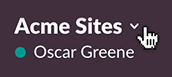
- Select Preferences from the menu.
- Click the Mark as Read tab.
- Under When I view a channel, select your preference.
You can choose from one of these options:
- Start where you left off (at the oldest unread message) and mark the channel as read
- Start at the newest message and mark the channel as read
- Start at the newest message but leave the older messages unread
Mark messages as unread
If you need to come back to a channel later, you can mark messages as unread. Here's how:
- Hover over the oldest message you’d like to mark as unread.
- Click the three dots icon.
- Click Mark unread.
The message you've selected and any others that are sent after it will be marked unread
Tip: You can also set an unread point by holding Alt and selecting a message.
Open and view channels
In the iOS app, your main view will be of the channel you're currently in. Here's how to navigate to other channels:
- Swipe left to right to open the channel list.
- Tap the channel you'd like to view.
If a channel name is bolded, this means there's unread activity. Channels with unread activity will appear at the top of the channel list.
Unread messages
Slack will display a blue bar when a channel has more unread activity than can fit on your screen.
Tap the arrow on the left to jump to the oldest unread message, or mark the channel as read by tapping the close icon at the right end of the bar
 .
.
Note: To disable the blue unread bar, swipe from right to left, tap Settings, Advanced, and toggle Mark as Read Immediately.
Mark messages as unread
If you need to come back to a channel later, you can mark messages as unread. Here's how:
- Long-press a message.
- Tap Mark Unread.
The message you've selected and any others sent after it will be marked as unread.
Open and view channels
In the Android app, your main view will be of the channel you're currently in. Here's how to navigate to other channels:
- Tap your workspace icon in the top left, or swipe from left to right to open the channel list.
- Tap the channel you'd like to view.
If a channel name is bolded, this means there's unread activity. Channels with unread activity will appear at the top of the channel list.
Unread messages
Slack will display a blue bar when a channel has more unread activity than can fit on your screen. Tap the blue bar to jump to the oldest unread message, or tap the close icon at the right end of the bar to mark the channel as read.

Mark messages as unread
If you need to come back to a channel later, you can mark messages as unread. Here's how:
- Long-press a message.
- Tap Mark Unread.
The message you've selected and any others sent after it will be marked as unread.
Open and view channels
In the Windows Phone app, your main view will be of the channel you're currently in. Here's how to move to other channels:
- Tap the channel list icon in the top left.
- Tap the channel you'd like to view.
If a channel name is bolded, this means there's unread activity. Channels with unread activity will appear at the top of the channel list.
Unread messages
When a channel has more unread activity than can fit on your screen, Slack will display a red bar above the oldest message. When you need to catch up, scroll up the bar to find where you left off.
