Manage your language preferences
You can display the Slack app in one of these five languages: English, German, French, Spanish, and Japanese.
If your preferred language isn't yet supported, you can still send and read messages in other languages by adjusting your spellcheck settings.
Note: In the future, we’ll consider additional languages for the Slack app. Stay tuned! 📻
Change your language preference
Your selected language will display throughout the app, but you may see workspace-wide messages or those from bots and apps in your workspace’s default language.
Here's how to set your individual language preference:
Desktop
iOS
Android
Windows Phone
-
From your desktop, click your workspace name in the top left.
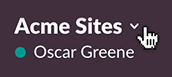
- Choose Preferences from the menu.
- Select the Language & Region tab.
- Choose your language preference.
- Swipe from right to left to open the sidebar.
- Tap Settings.
- Tap Language and select your preference.
- Tap the three dots icon in the top right.
- Tap Settings.
- Tap Language & Region.
- Tap Language to select your preference, then tap OK.
- Tap the three dots icon in the top right.
- Tap Settings.
- Tap Language & Region.
- Tap Language to select your preference, then tap OK.
Messages and spellcheck
Write messages in your language
Although the Slack app can only be displayed in a few languages, you can still send and read messages in most other languages. In the message box, type your messages in your preferred language and send!
Note: Slack does not support right-to-left languages, such as Arabic. We hope to include better support for these languages in the future.
Set spellcheck to a different language
By default, spellcheck is enabled to detect the language of the messages you send: in the message box, misspelled words will appear underlined in red.
You can set spellcheck to a different language, or turn it off entirely. Here's how:
-
From your desktop, click your workspace name in the top left.
- Choose Preferences from the menu.
- Select the Advanced tab.
- Under Input Options, check or uncheck Enable spellcheck on your messages.
- Use the drop down menu to confirm your language: use the default option, Automatic by language, or choose your preferred language from the list.