Guide to single sign-on settings
If your workspace has single sign-on (SSO) turned on, there are a few additional settings that make it easier to bring member details stored in your identity provider — like display names and email addresses — into Slack.
💡 Learn more about SAML single sign-on or G Suite single sign-on.
Access SSO settings
Standard and Plus plans
Enterprise Grid plan
Workspace Owners can access SSO settings. Here's how:
- From your desktop, click your workspace name in the top left.
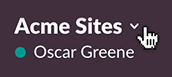
- Select Administration, then Workspace settings from the menu.
- Click the Authentication tab, then Configure. If you already have SSO turned on, press Change Settings. You may be asked to authenticate.
- Click Expand.
Org Owners and Admins can access SSO settings. Here's how:
- From your desktop, sign in to your Slack Enterprise Grid, then click Manage Organization.
- Visit the Security page of the Admin Dashboard.
- Click SSO Preferences.
Learn about SSO settings
Standard and Plus plans
Enterprise Grid plan
👤 Update a profile each time a member logs in
Full names, email addresses, and display names will automatically sync and update when members sign in to Slack.
📧 Allow members to change their email address
Give members the option of changing their email address to something other than the whitelisted domain that they used to create their account.
🏷 Allow members to change their display name
Display names for each member come from your identity provider, but you can give members the option to choose a different display name.
💼 Choose who must use single sign-on
You can choose who is required to use single sign-on to access your workspace: all members, all members except guest accounts, or make it optional. Here are some things to keep in mind:
- The option to require All members except guest accounts to use single sign-on is the most common preference.
- Binding emails are not sent to members if single sign-on is optional.
🎨 Customize the sign in button label
If you have a nickname for your SAML-based SSO system, you can customize the button label to help your members sign in.
👤 Update a profile each time a member logs in
Full names, email addresses, and display names will automatically sync and update when members sign in to Slack.
📧 Allow members to change their email address
Give members the option of changing their email address to something other than the one connected to your identity provider.
🏷 Allow members to change their display name
Display names for each member come from your identity provider, but you can give members the option to choose a different display name.
💼 Choose who must use single sign-on
You can choose who is required to use single sign-on to access your workspace: all members or all members except guest accounts.
The option to require All members except guest accounts to use single sign-on is the most common preference.
🎨 Customize the sign in button label
If you have a nickname for your SAML-based SSO system, you can customize the button label to help your members sign in.
Additional security preferences
There are a number of options that you can set with or without single sign-on turned on. 🔓
Here’s where you can learn more about them:
- Mandatory workspace two-factor authentication
- Manage session duration
- Reset all passwords for your workspace
- Workspace Owners and Org Owners/Admins can access this feature.
- Available on all paid plans.