Lesson 8 — Create new channels
 |
Meet Sara.
|
Introduction
Sara's experience before Slack
In her previous company, organizing work around a specific topic was close to impossible. Communication happened primarily in email, where one inbox held information across every topic or project she could think of. The lack of organization made it difficult to track information, stay up-to-date, and move work along.
How Acme uses Slack
- Acme uses channels to bring together conversations and work related to a particular topic (eg. projects, teams, announcements, and social discussions)
- Sara has noticed people at Acme use channel naming conventions to keep Slack organized and make it easier for other people to find and join channels related to their work
- Sara knows that channels work best when the right people and information are brought together
An example from Acme
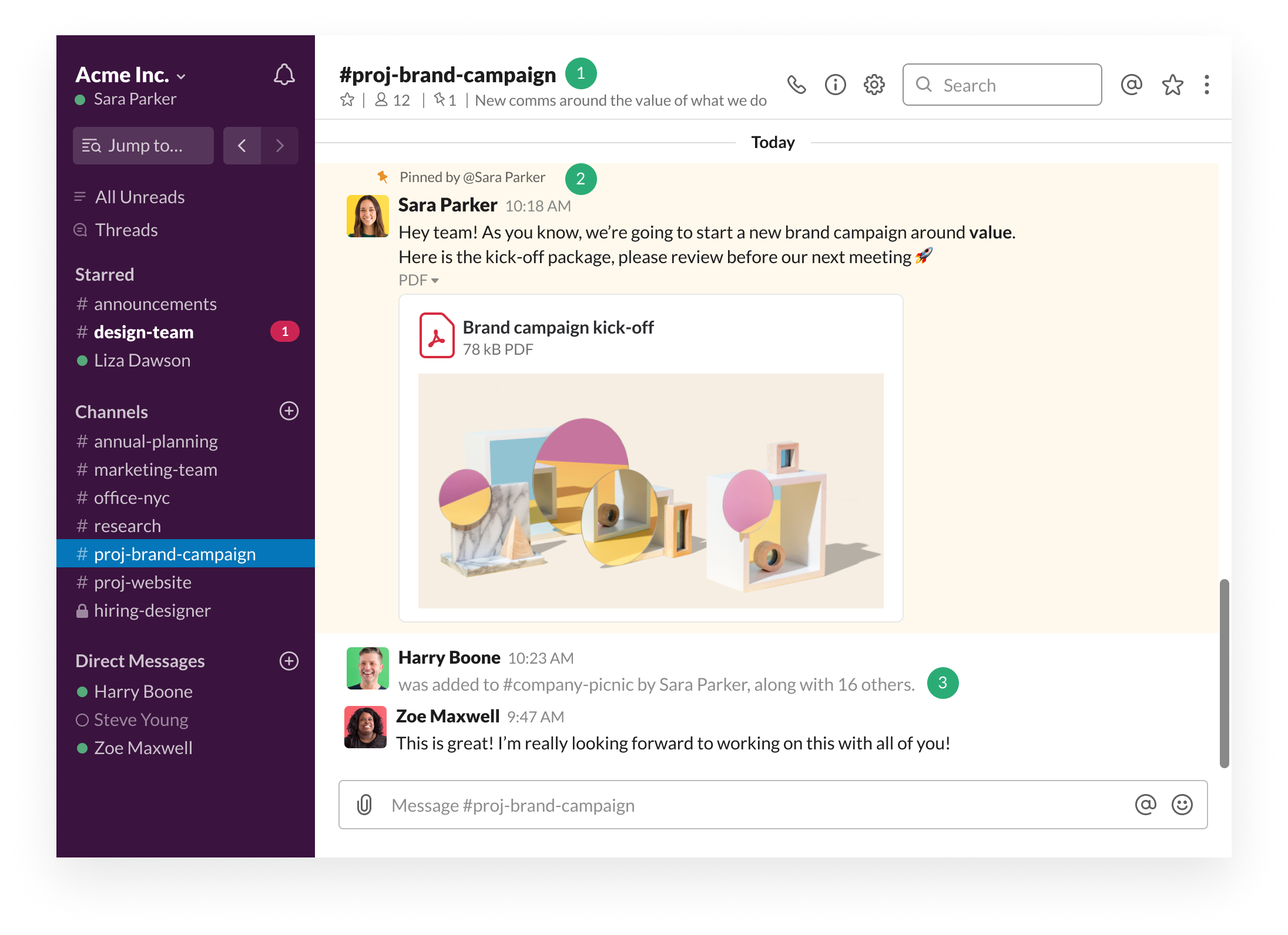
What's happening...
- Sara is the project manager for a new campaign Acme is putting together. She's created the #proj-brand-campaign to organize all communication and planning around the project.
- To help get everyone up to speed, Sara uploads a file containing the kick-off details for the project and pins it for everyone to see in the channel.
- Sara then invites her colleagues to the channel to spread the news.
Creating channels with naming conventions
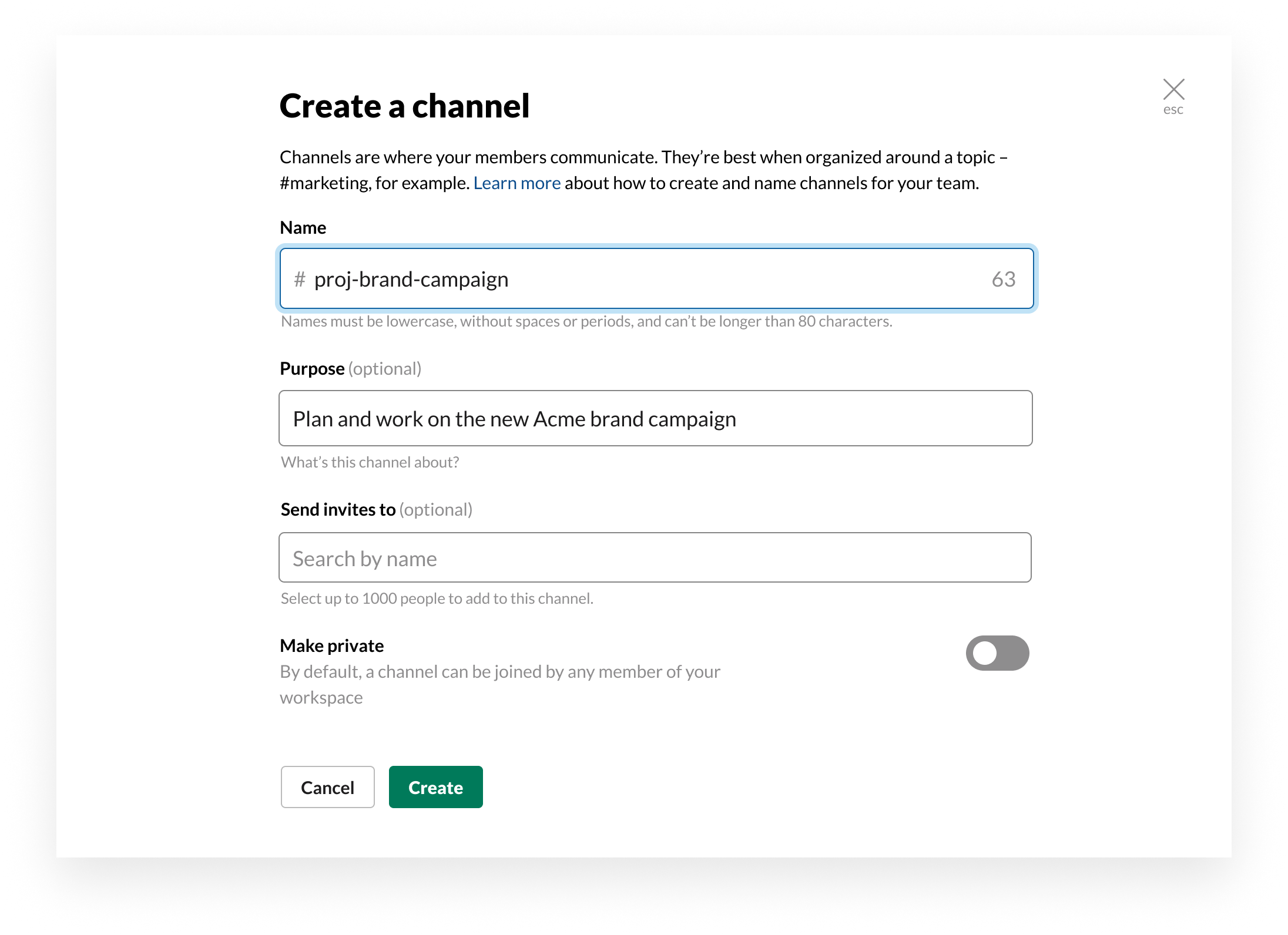
Acme adds prefixes to channel names, to make a channel's purpose clear and discoverable when searching in Slack.
Sara is creating a new channel to bring people together to work on a new brand campaign. Following the existing channel naming conventions at Acme, she names the channel #proj-brand-campaign, keeping this clear and concise.
Tip: Other common channel prefixes could be: #team-, #help-, and #office-.
Getting members up to speed with pins
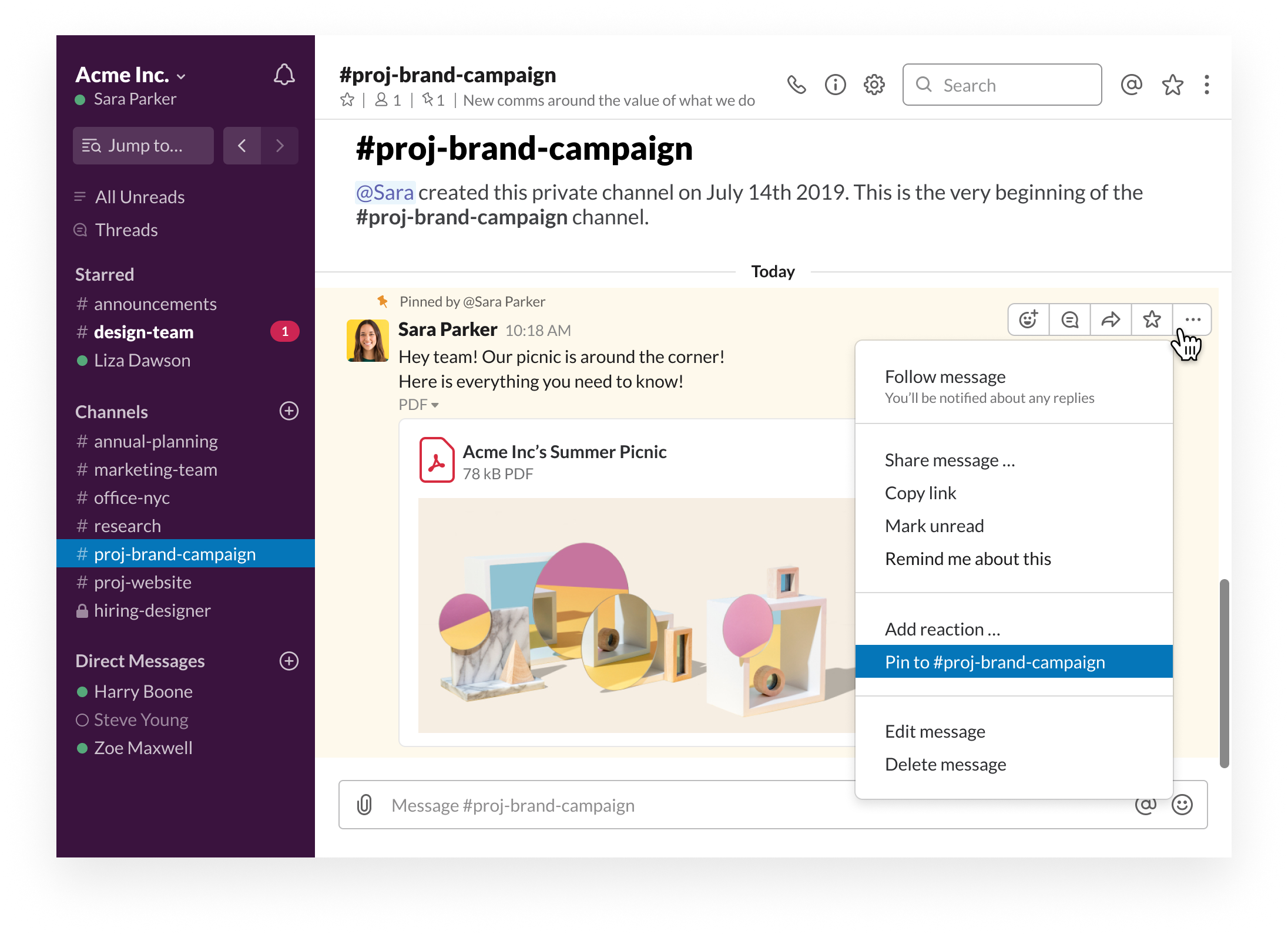
Sara wants to make sure that everyone has the details they need when they first join the channel. Before adding members, she uploads and pins the kick-off details to the channel. Now, everyone joining will be able to see her message and get up-to-speed faster.
Desktop
iOS
Android
- Hover over the message or original file message you'd like to pin.
- Click the More actions icon.
- Select Pin to #channel-name (or to this conversation).
- Click Yes, pin this message or file to confirm.
A message will appear in the channel or DM letting others know you’ve pinned an item. Your pinned item will be shown in the details pane, which you can open by clicking the pin icon.
- Tap on the message or shared file you'd like to pin.
- Tap the More actions icon.
- Select Pin Message.
- Touch and hold on a message or file.
- Tap Pin to conversation.
Bringing the right people together
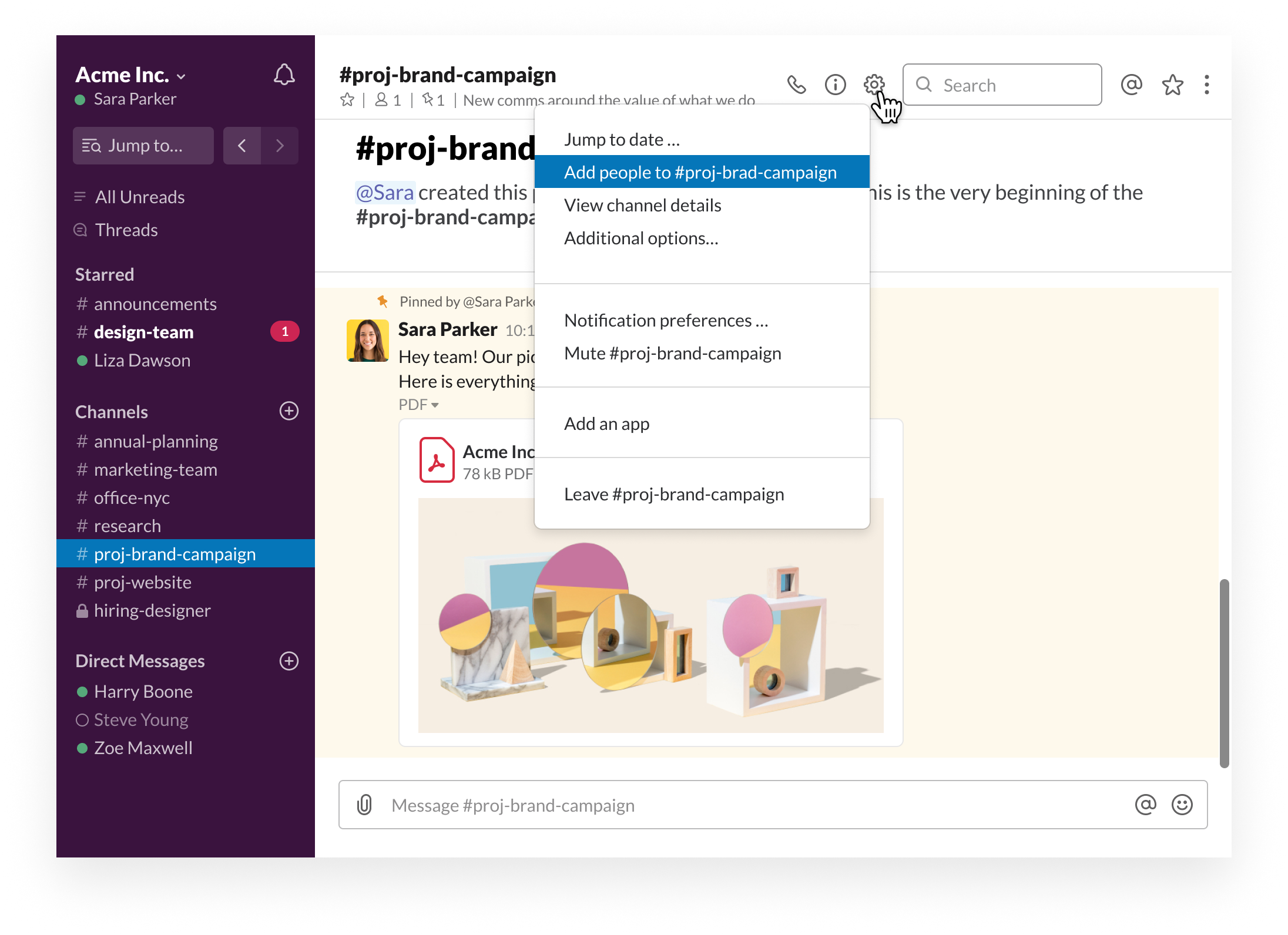
Channels are most effective when the right people and information are brought together. Now that Sara has shared the information, she's ready to add her teammates to this channel and get to work.
Desktop
iOS
Android
- Open a channel.
- At the top of the screen, click the Channel Settings icon.
- Select Add people to [channel-name].
- Start typing a name to select members. Then click the plus icon next to the name of each person you want to add.
- When you're done, press Enter or click Add.
- Swipe right to open the channel list.
- Open the channel you want to add someone to.
- Tap the channel name at the top of the screen.
- Tap Add Someone, then tap the circle next to the names of the people you want to add.
- Tap Invite.
- Swipe right to open the channel list.
- Open the channel you want to invite someone to.
- Tap the channel name at the top of the screen.
- Tap Add Someone, then tap the circle next to the names of the people you want to add.
- Tap Done.
Your next steps
💡 Create a channel using naming conventions in your workspace
💡 Pin a file or message in your newly created channel
💡 Add members to your channel
↪️ Ready for more content? Resources Hub