Lesson 5 — Focus on what matters to you
 |
Meet Sara.
|
Introduction
Sara's experience before Slack
In her previous company, Sara received a steady stream of emails every day. Some of these were important, some weren’t, and she needed to spend lots of time each day combing through communication to find the information she cared most about. The lack of organization made it difficult to stay focused on the key areas that would help move work along.
How Acme uses Slack
- Work at Acme changes over time, so people are always joining and leaving channels so they stay focused on the most important information
- Everyone sets up notification preferences so they get the right number of alerts
- People keep organized by starring channels to prioritize the work that matters most to them
An example from Acme
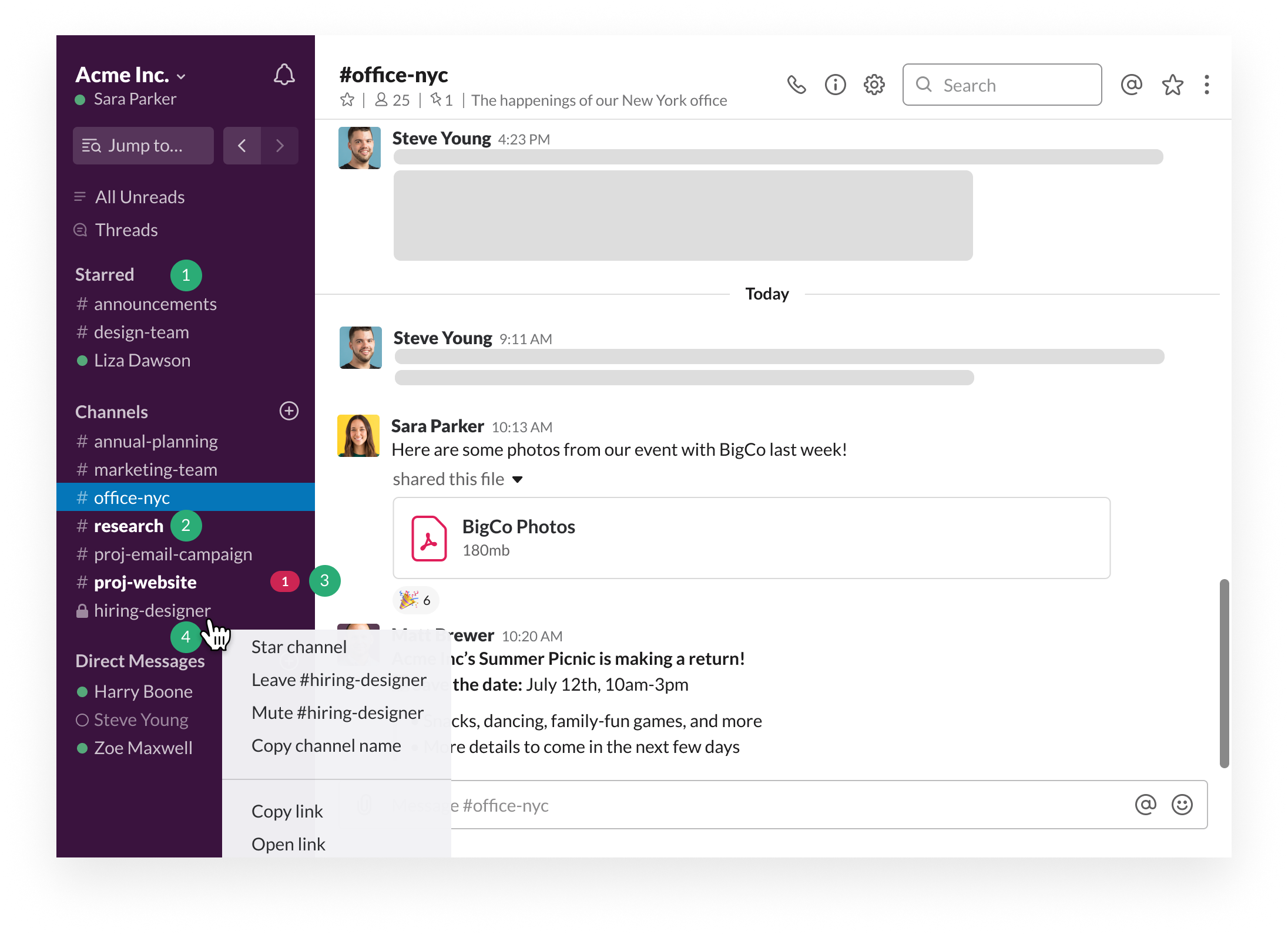
What's happening...
- Sara stars channels that are most relevant to her work. This helps her prioritize the conversations that she needs to share ideas, make decisions and move work forward.
- Sara knows that when a channel name is bold, it means a channel has unread messages.
- Sara can see that someone has tried to get her attention when there is a badge next to a channel or direct message.
- Sara leaves a channel when she doesn't need to follow along with the conversation anymore.
Starring channels
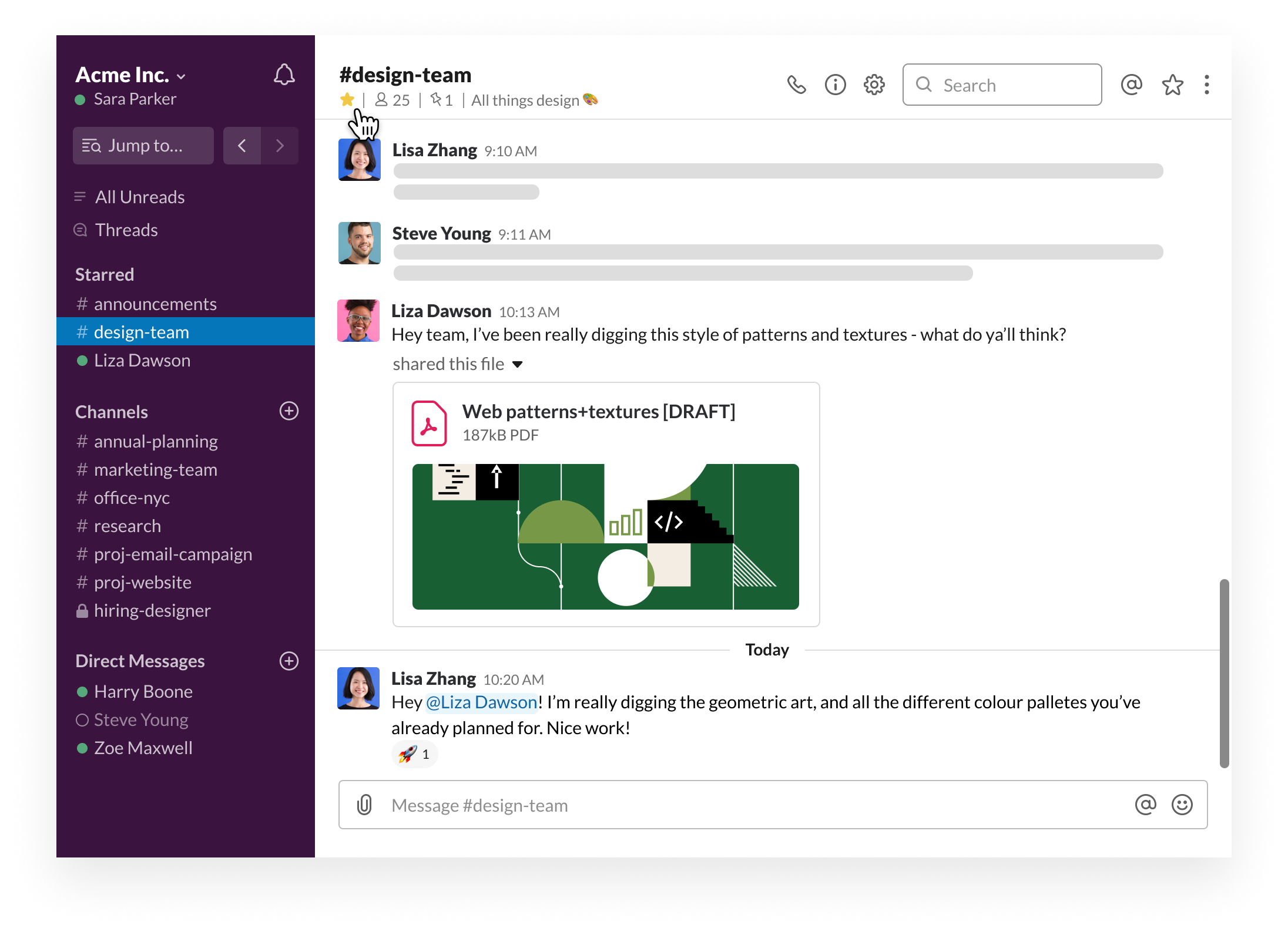
Sara has learned that starring channels is a great way to organize and focus on conversations that are most important in her day-to-day work. Sara is in lots of channels at Acme, because she likes to stay up-to-date on what other teams are working on. Starring channels lets her visually separate the channels she cares about most.
Desktop
iOS
Android
- Open the channel or direct message you'd like to star.
- Click the star icon below the channel or member name(s). The star will turn yellow to indicate that it's a starred channel.
- Tap the channel name in the header to view the channel or conversation details menu.
- Tap the star icon at the top right.
- Tap the channel name in the header to view the channel or conversation details menu.
- Tap the star icon on top right.
Leaving channels
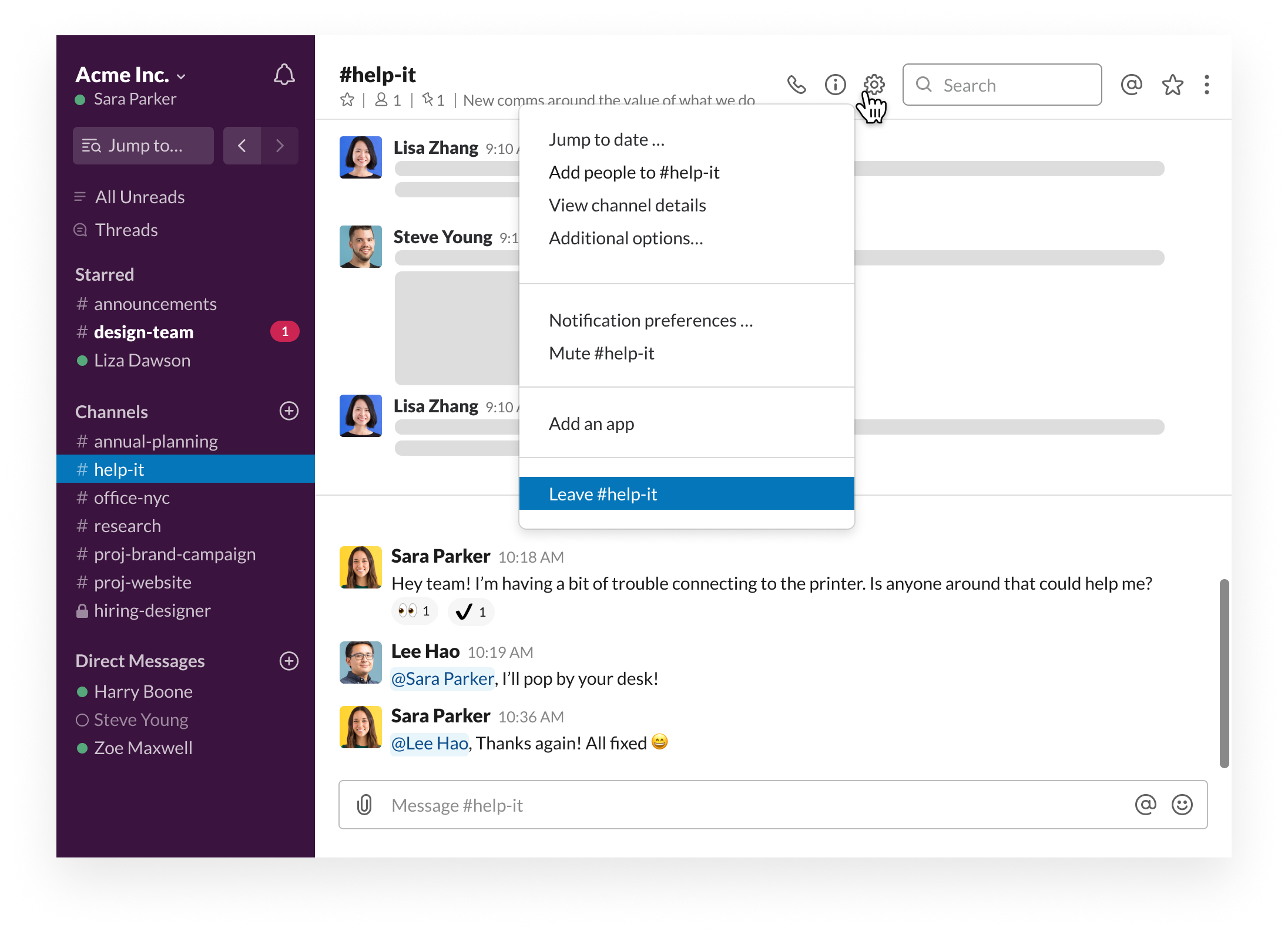
Sara previously joined the #help-it channel to ask a question about how to connect to Acme’s printers. She received an answer from someone on the IT team, and now Sara doesn’t want to follow along with the conversation in the channel any more.
Since the content of #help-it isn’t important to her any more, Sara decides to leave the channel. She can always rejoin the channel later if she has another question (unless the channel has been set to private, in case she’ll need to be re-invited!)
Desktop
iOS
Android
- Click the gear icon to open the Channel Settings menu.
- Select Leave [channel name].
- Tap the channel name in the header to open the channel details menu.
- Tap Leave Channel.
- Tap the channel name in the header to open the channel details menu.
- Tap Leave.
Set notification preferences
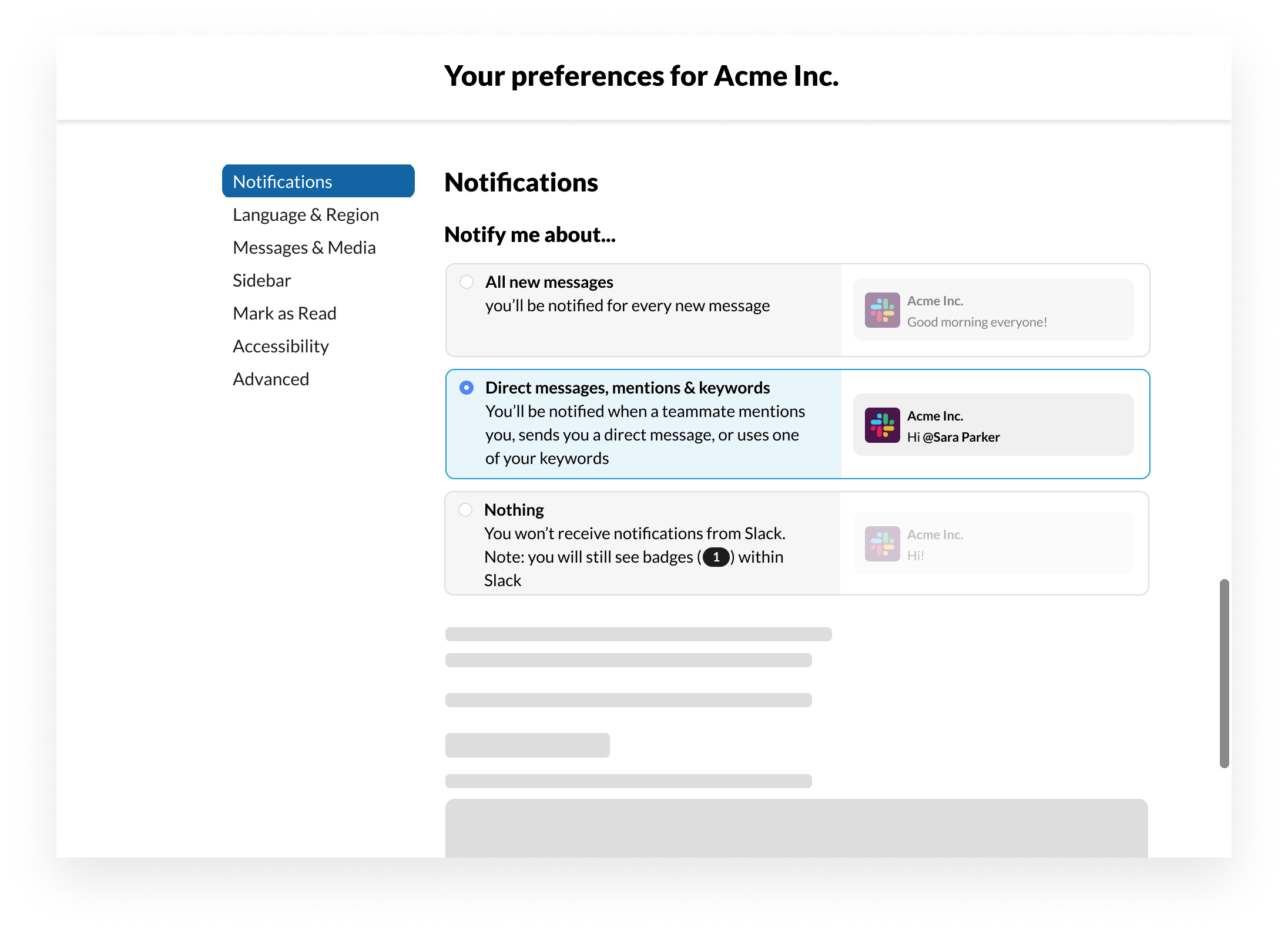
Sara decides how and when to get notified in Slack. Sara uses the default notification settings, whereby she is notified when people try and get her attention in direct messages and by mentioning her in channels.
- From your desktop, click your workspace name in the top left.


- Select Preferences from the menu.
- Under Notify me about, choose which activity Slack notifies you of.
Your next steps
💡 Review your notification preferences
💡 Star a channel to bring it to the top of your sidebar
↪️ Ready for the next lesson? Lesson 3.1 - Collaborate effectively in channels