Lesson 7 — Find and search for information
 |
Meet Sara.
|
Introduction
Sara's experience before Slack
In her previous company, Sara found that key pieces of information were being shared in many different places. Emails had attachments and links to files, multiple cloud services were used across her company, and file storage services were easy to mix up. The numerous ways to share information made it difficult to keep track of everything and move work along.
How Acme uses Slack
- Files and conversations exist side-by-side in channels, and the value of channels grow over time to become a company's repository of information
- Since Acme does all of their work in channels, Sara knows that she can search Slack and find information she's looking for
- Sara uses stars to bookmark key pieces of information and files
An example from Acme
What's happening...
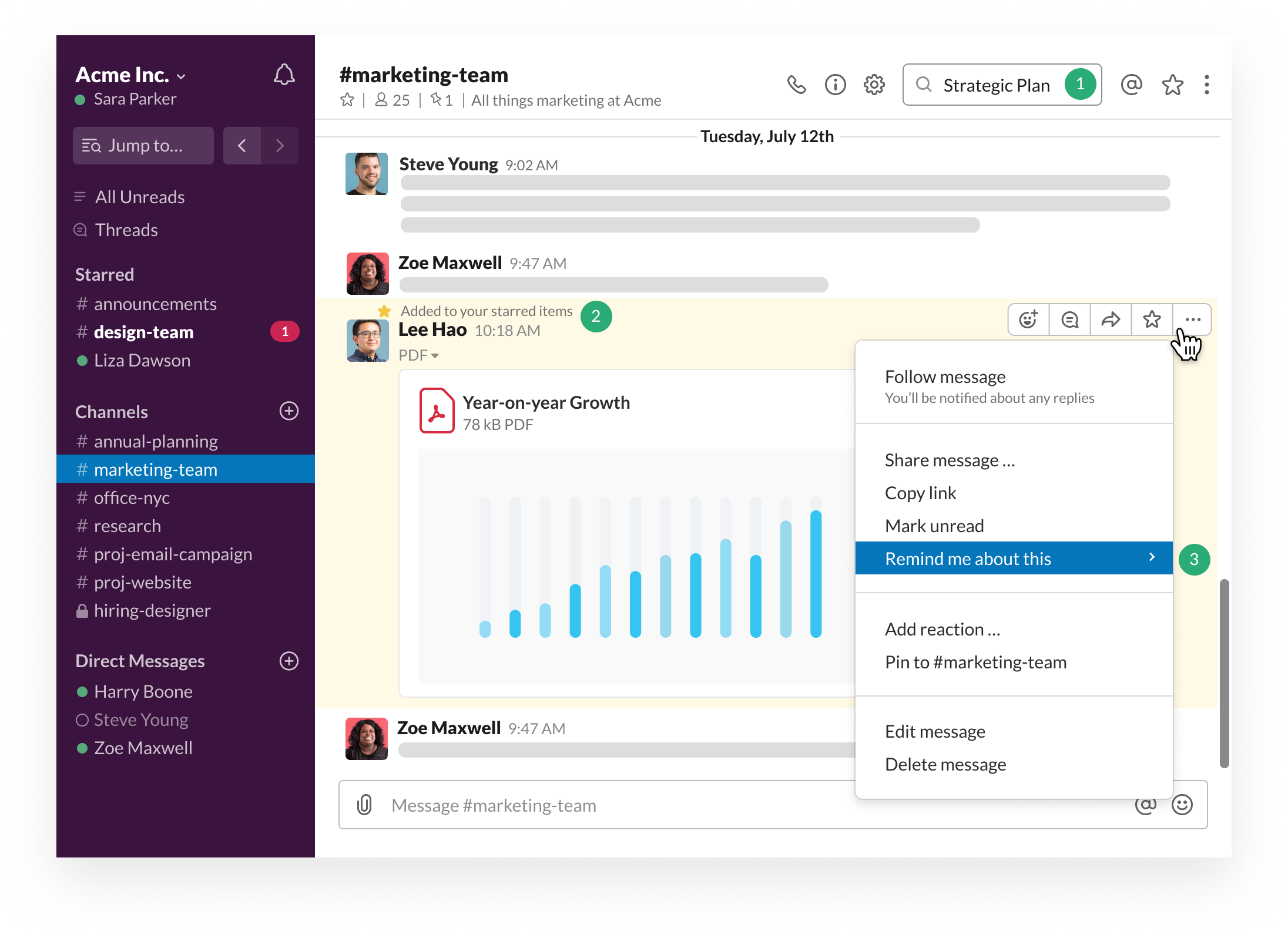
- Sara has searched for a file named Strategic Plan to reference for an upcoming meeting
- Sara wants to be able to come back to this file easily, so she bookmarks the file using a star
- She uses a reminder to set a time to come back to the message later in her day
Searching in Slack
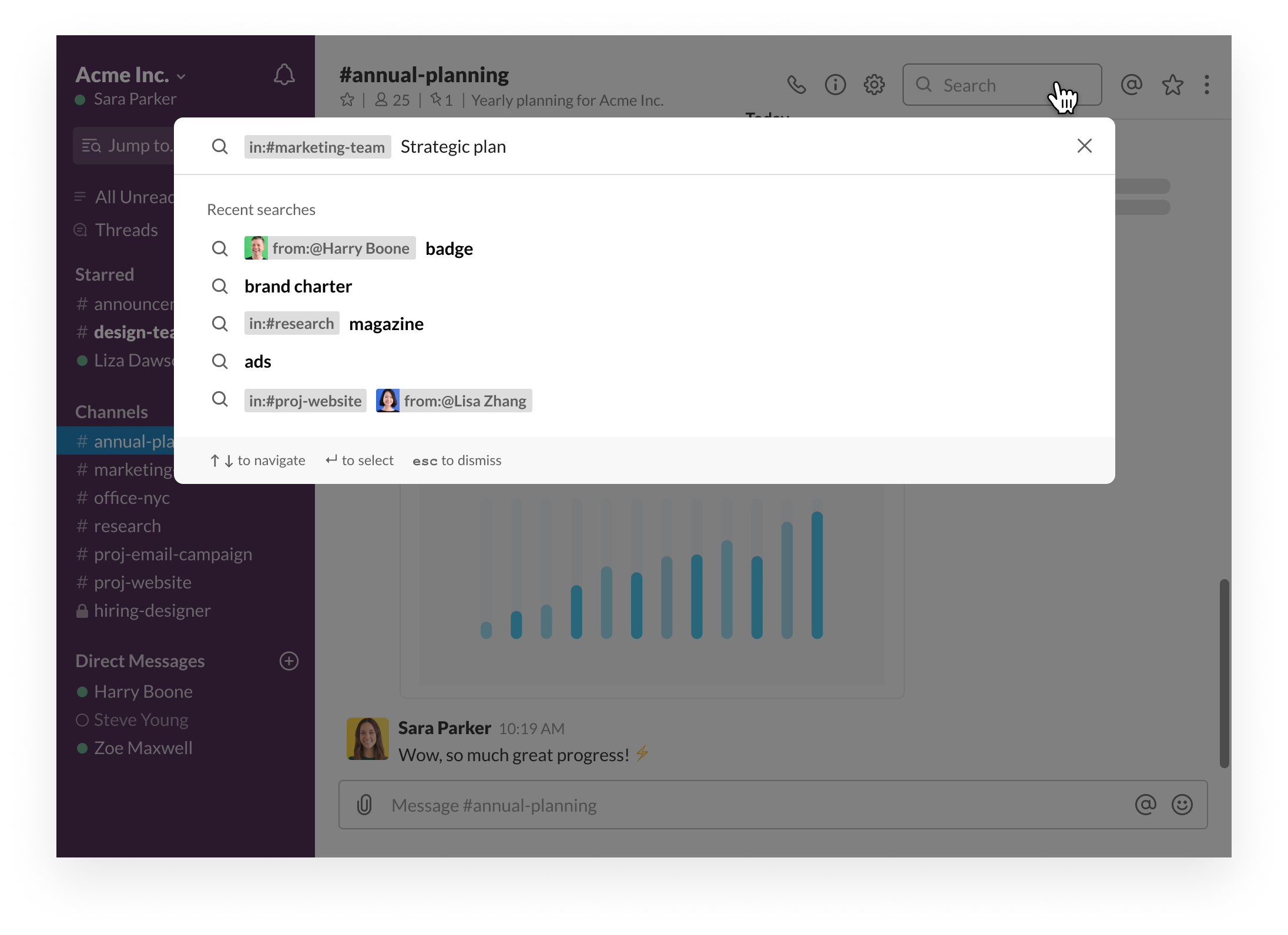 Sara needs to find an important document to review before a meeting. Everything in Slack – including messages, files, and data from apps – is easily searchable because everyone at Acme Inc. works in channels. Sara uses a modifier to narrow her search down to find the Strategic Plan she was looking for.
Note: For more information on search, including filters and modifiers, read the guide to search here.
Desktop
iOS
Android
- Click the search field on the top right. Or press ⌘K (Mac) and CtrlK (Windows/Linux)
- Start typing a search term. Slack will show you related channels, members, and search suggestions. You can also choose from your recent searches.
- Press Enter to view your search results, or jump to a channel or direct message.
- Tap the magnifying glass icon in the top right.
- Type your search terms.
- Tap Messages or Files. (You'll be able to toggle between the two even after you’ve run your search).
- You’ll see suggestions on how to format your search terms and narrow your results. Select any recommendations you’d like.
- Tap Search.
- Tap the magnifying glass icon in the top right.
- Type your search terms.
- Tap Messages or Files. (You'll be able to toggle between the two even after you’ve run your search).
- You’ll see suggestions on how to format your search terms and narrow your results. Select any recommendations you’d like.
- Tap the magnifying glass icon on your device's keyboard to run your search.
Bookmarking files and messages with stars
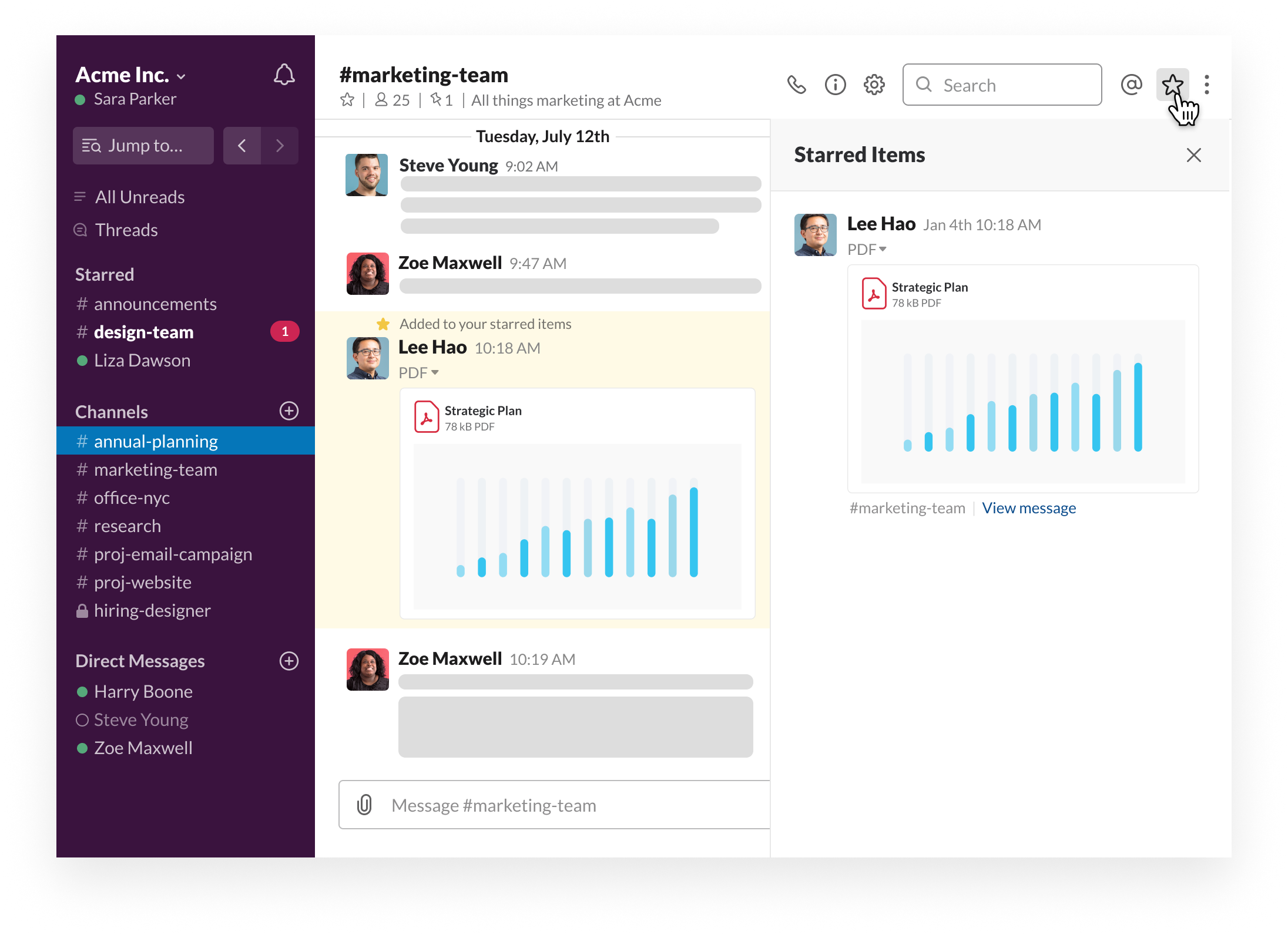
Starring a file or message is similar to bookmarking a website. Sara uses a star to keep track of important messages or files she finds while searching in Slack.
Desktop
iOS
Android
Windows Phone
- Move your mouse over a message, file, or file comment.
- Click the gray star icon and it will turn yellow. Hurrah! You’ve now starred the item!

Click the star icon on the upper right to view all your Starred Items.
- Touch and hold on a message or file you’d like to star.
- Tap Star Message or Star File. That's it! You've starred the item!
To remove a star from a message or file, touch and hold on the message and tap Remove Star.
- Touch and hold on a message or file you’d like to star.
- Tap Star Message or Star File. That's it! You've starred the item!
Using reminders to track action items
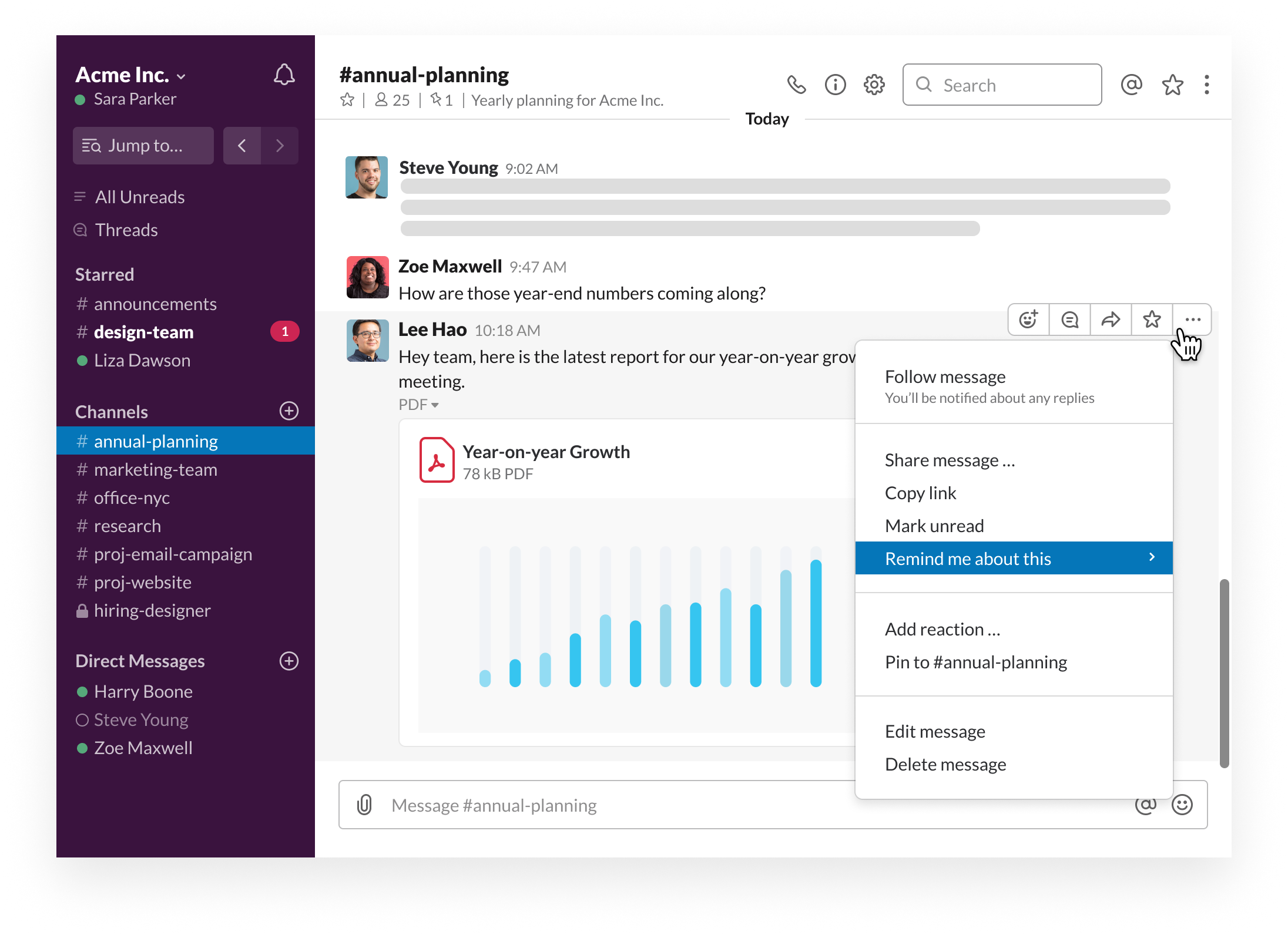 Lee has asked the team to take a look at the Year-on-Year Growth document before an upcoming meeting. Sara needs to come back to this, as she doesn't have the time to dig into it right now. She uses a reminder to set a time to have Slack bring her back to the message.
Desktop
iOS
Android
- Click the More actions icon on a message or file.
- Hover over Remind me about this, then choose a timeframe from the list.
Use the /remind list slash command to see a list of your reminders.
- Touch and hold on a message or file.
- Tap Remind Me.
- Tap the timeframe when you would like to be reminded.
Use the /remind list slash command to see a list of your reminders.
- Touch and hold on a message or file.
- Tap Remind Me.
- Tap the timeframe when you would like to be reminded.
Use the /remind list slash command to see a list of your reminders.
Your next steps
💡 Search for a file or message in Slack, and bookmark it with a star
💡 Set a reminder on a message that you'd like to come back to
↪️ Ready for the next lesson? Lesson 3.3 - Create new channels