Lesson 3 — Find and start conversations
 |
Meet Sara.
|
Introduction
Sara's experience before Slack
In her previous company, Sara found it really hard to keep up-to-date with the latest information about topics that affected her work. Her email inbox was a jumble of 1:1 conversations and giant reply-all threads, and sometimes she had no idea that key conversations were happening at all.
How Acme uses Slack
- Work takes place in channels. Channels bring together the right people with the right information so everyone can share ideas, make decisions and move work forward.
- Anyone at Acme can join channels, so every person can keep tabs on the topics that they care most about.
- For short, 1:1 conversations, the team uses direct messages.
An example from Acme
What's happening...
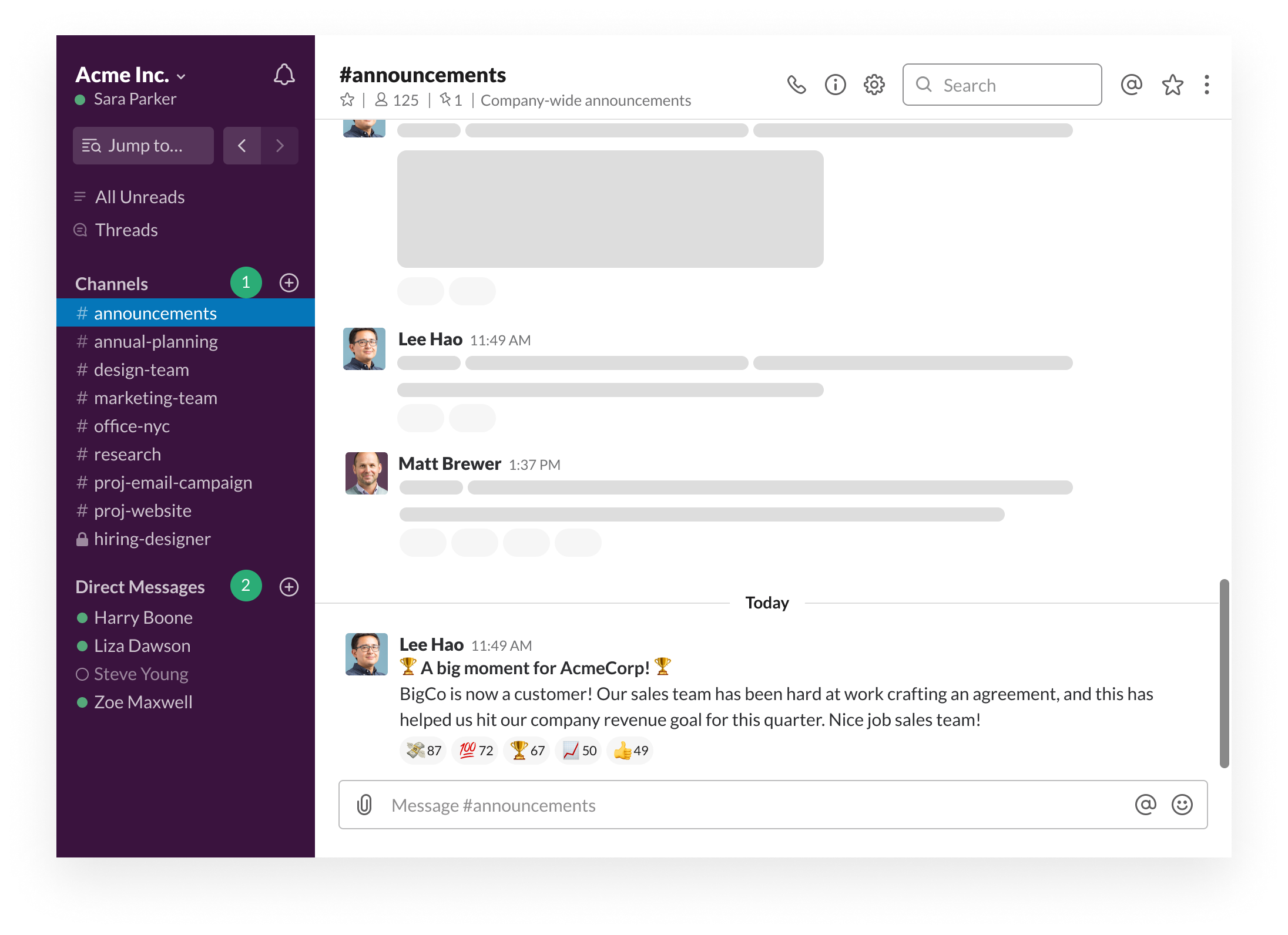
In the sidebar, Sara can see the two types of conversations in Slack –
- Channels (like #announcements). Most of the conversation at Acme takes place in channels. Channels are organized around departments, projects, office locations – any topic really. She’s noticed that channels group conversations together, which brings order and clarity to work at Acme.
- Direct messages (like her conversation with Harry Boone).
Find and join channels
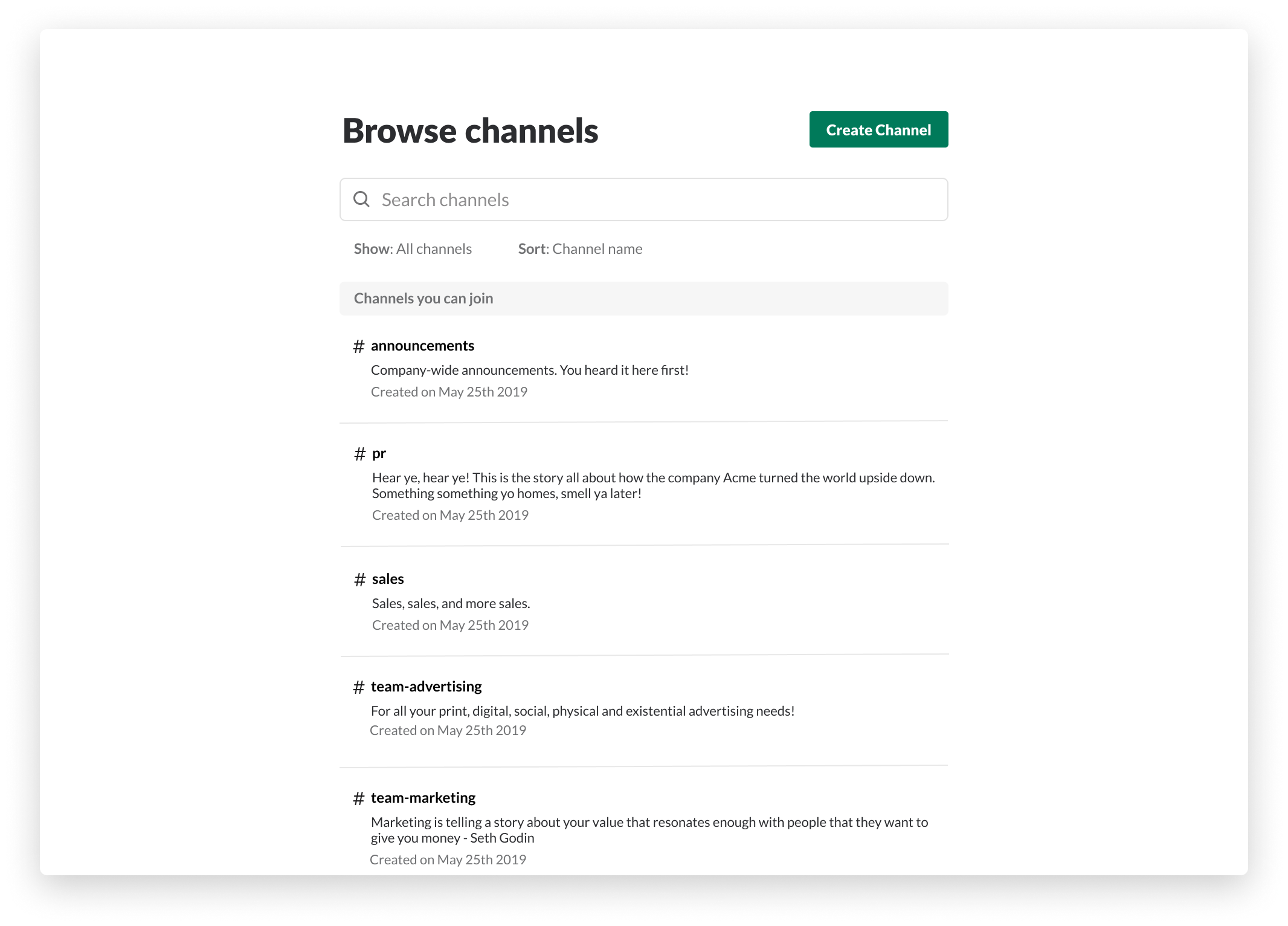
When Sara wants to join a channel, she navigates to the sidebar and clicks on the word Channels. This opens the channel list, where she can see all the channels at Acme that are available for her to join.
When Sara joins the channel, she can scroll up to see all of the context, conversations, ideas and decisions that have happened so far. As a new hire, finding and joining relevant channels have helped her get up to speed at Acme much faster.
When she has something to add to the conversation, Sara sends a message to the channel. As more people contribute to the channel, important information is captured over time.
Desktop
Mobile
- Select the word Channels in the left sidebar to open the channel browser.
- Click preview to view a channel's contents.
- To join, click Join Channel
- Swipe left to open the channel list.
- Tap the plus icon to the right of the Channels section header
- Tap a channel name to preview the details.
- Tap Join Channel
Start a direct message conversation
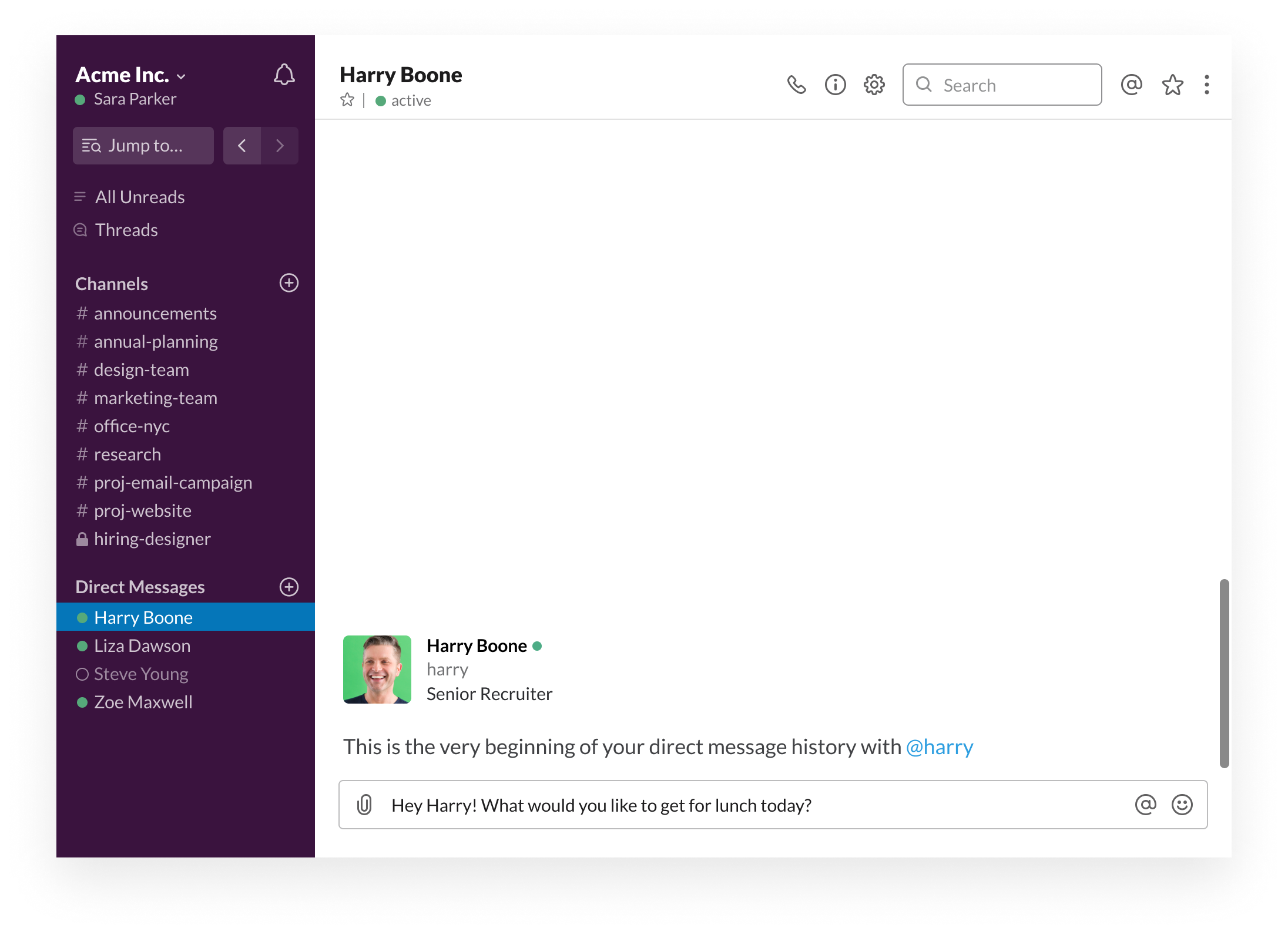
Every now and then, Sara needs to have a 1:1 conversation with another person. While people at Acme generally default to having discussions in a channel if other people on the team could learn from the information that gets shared, sometimes the conversation is really only between two people.
In this case, Sara uses a direct message instead of a channel.
Desktop
Mobile
- Click Direct Messages in the left sidebar to see a list of all your 1:1 conversations.
- Swipe left to right to open the sidebar.
- Tap Jump to..., then type the name of the other person in your direct message.
Your next steps
💡 Review the list of channels in your sidebar
💡 Open the channel browser to join a new channel
↪️ Ready for the next lesson? Lesson 2.2 - Working in channels