Lesson 4 — Working in channels
 |
Meet Sara.
|
Introduction
Sara's experience before Slack
Before Acme, Sara was used to working in email. Conversations would often become fragmented threads – and no-one had the full picture on what was going on. Every conversation was private by default, because only the people who had been added to the email thread had access to the information. These communication silos made it difficult to keep aligned, track information, and stay up-to-date.
How Acme uses Slack
- By default, anyone at Acme can join channels in Acme's workspace, which means everyone has the opportunity to get up-to-speed with the conversation so far.
- Some conversations at Acme are confidential, so they set those channels to private.
- People use mentions to get the attention of a specific person in a channel.
An example from Acme
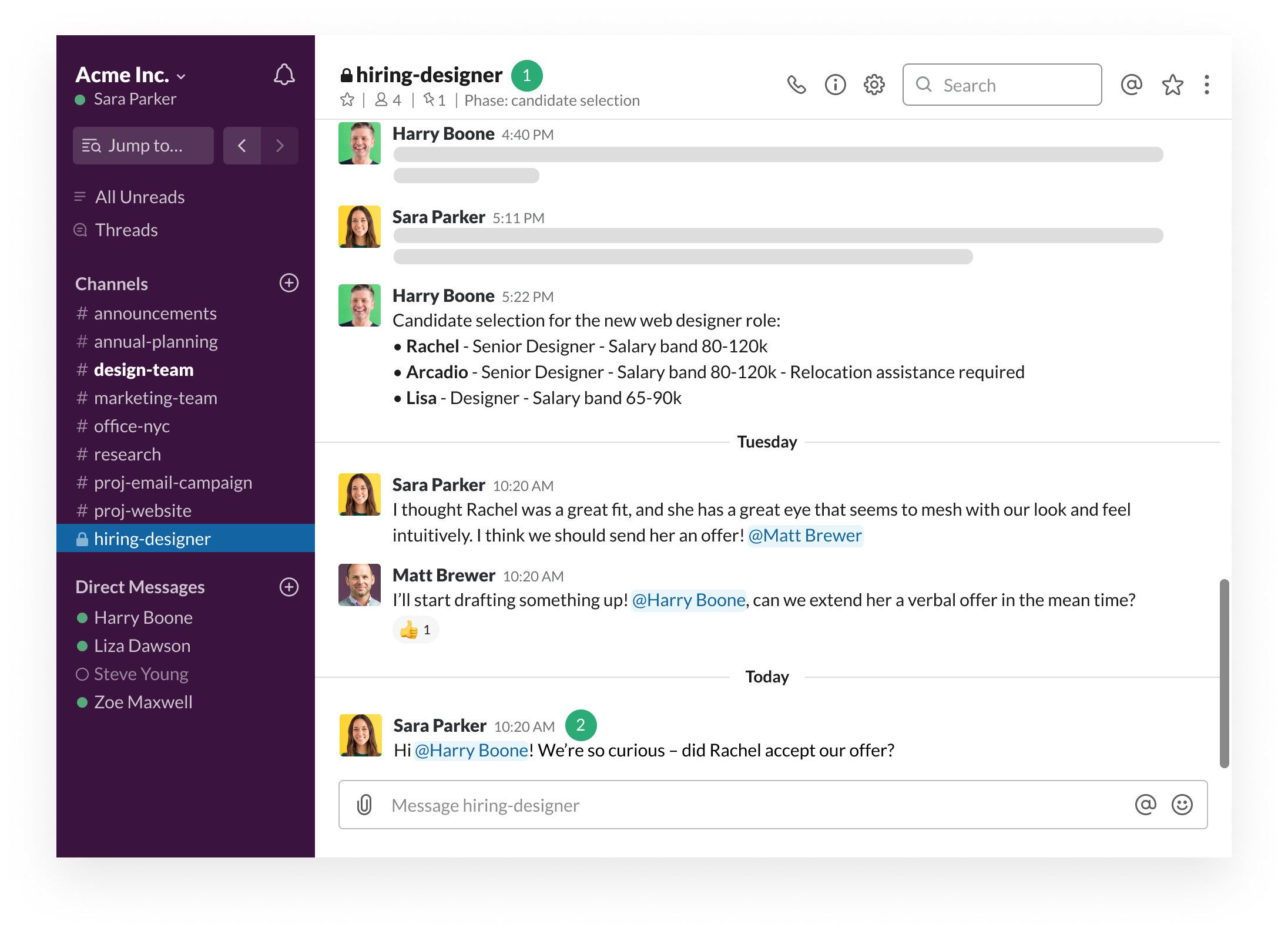
What's happening...
- Sara wants to get an update on hiring a new designer, so she jumps to the hiring-designer channel
- Sara mentions Harry, the recruiter, to get an update on the offer the team sent out earlier in the week
Working in channels
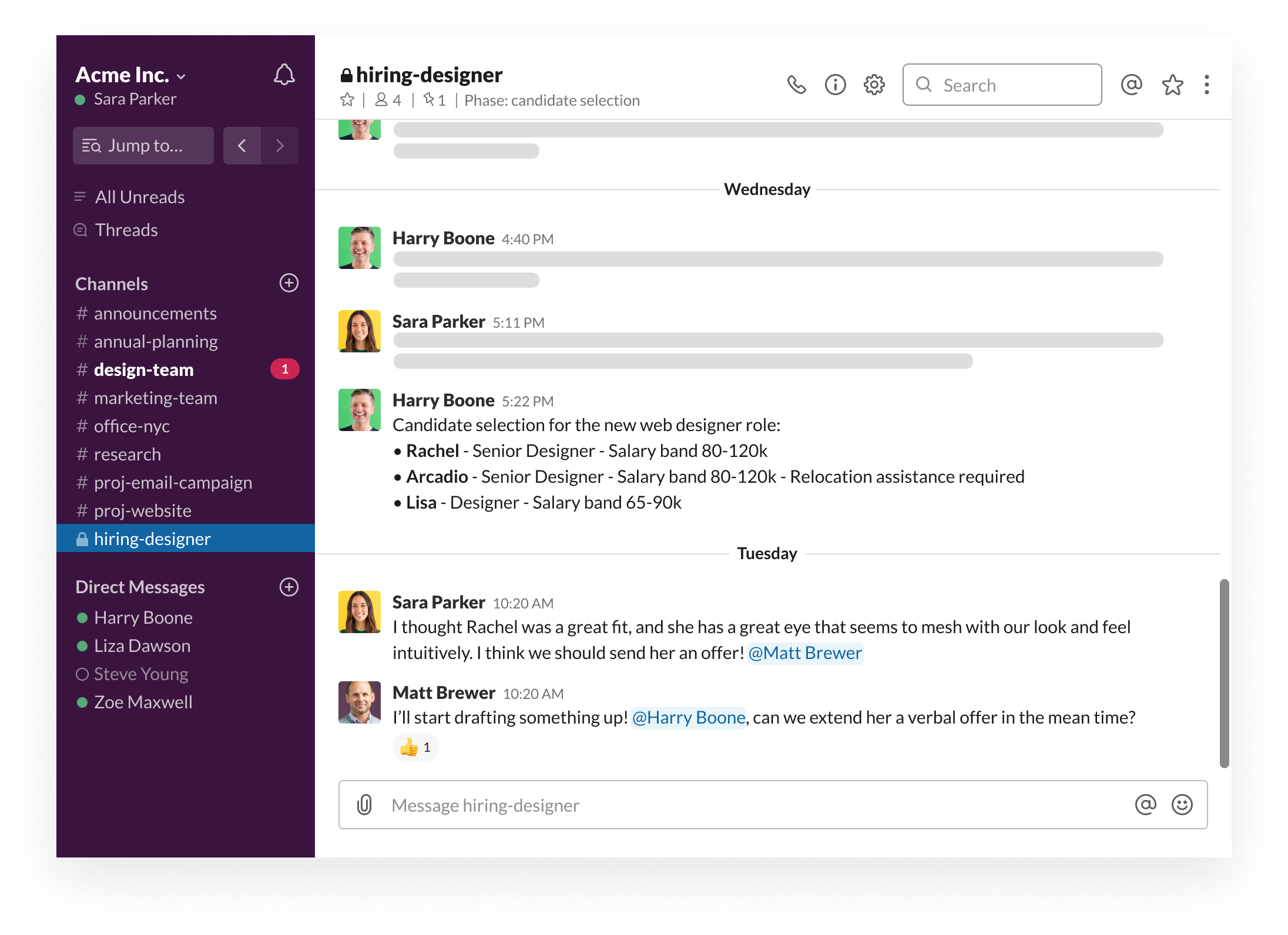
Channels are the primary place to work in Slack. #proj-website is a channel. Channels have a hash icon next to them. Sara – and anyone else at Acme – can join channels in their workspace. This helps connect people who know about different topics. Sara has found that channels help her find answers, get context and make decisions more quickly.
Channels can also be set to private. #hiring-designer is a channel that’s been set to private, which is why it has a lock icon. Channels that have been set to private can only be joined if someone in the channel invites you.
Tip: Only set a channel to private if you’re working something confidential or sensitive within your organization.
Mention a colleague to get their attention
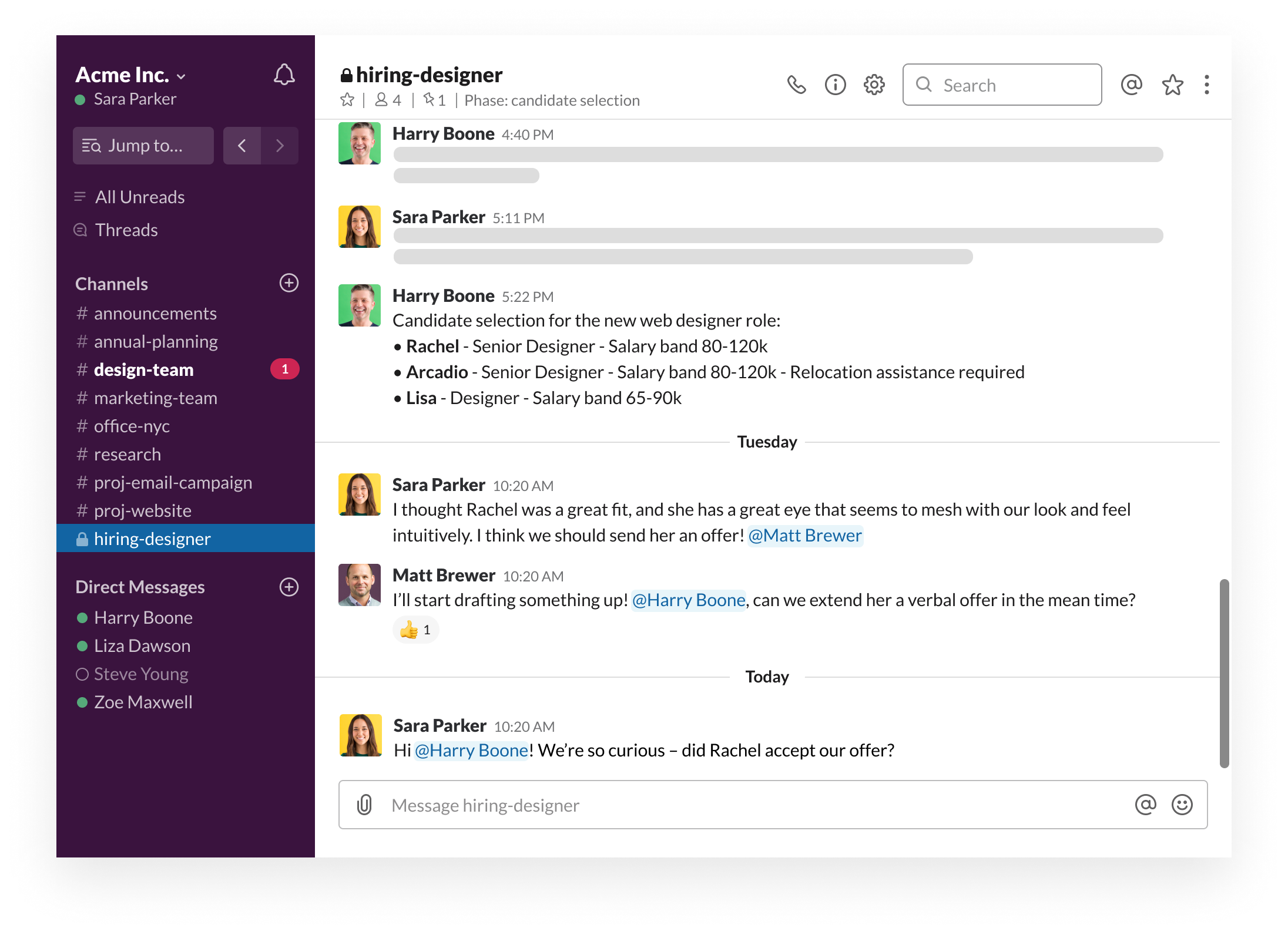 Sara needs to get the attention of Harry to request a hiring update. She mentions Harry directly in her message. Harry gets notified that someone needs his help, and everyone in the hiring channel stays up-to-date on what’s happening in the conversation.
Desktop and mobile
- Type the '@' symbol, followed by the first few letters of someone's name
- Scroll to the person you'd like to mention and select them.
Your next steps
💡Look at Slack and see if you can spot channels, as well as channels that have been set to private
💡 Mention a colleague in a channel to get their attention
↪️ Ready for the next lesson? Lesson 2.3 - Focus on what matters to you